Posts

Showing posts with the label aws

Digital Marketing

AWS CloudFormation

 CloudFormation Snippets: https://docs.aws.amazon.com/AWSCloudFormation/latest/UserGuide/quickref-general.html#quickref-general-example-10.yaml  CloudFormation UserData: https://aws.amazon.com/blogs/mt/the-virtues-of-yaml-cloudformation-and-using-cloudformation-designer-to-convert-json-to-yaml/  Basic CloudFormation Template: https://github.com/awslabs/aws-cloudformation-templates/blob/master/aws/services/EC2/EC2InstanceWithSecurityGroupSample.yaml UserData Shell Scripts: https://docs.aws.amazon.com/AWSEC2/latest/UserGuide/user-data.html#user-data-shell-scripts 

Amazon FSx | File Storage | Amazon Web Services

Amazon FSx for Windows File Server provides a fully managed native Microsoft Windows file system so you can easily move your Windows-based applications that require file storage to AWS. https://aws.amazon.com/fsx

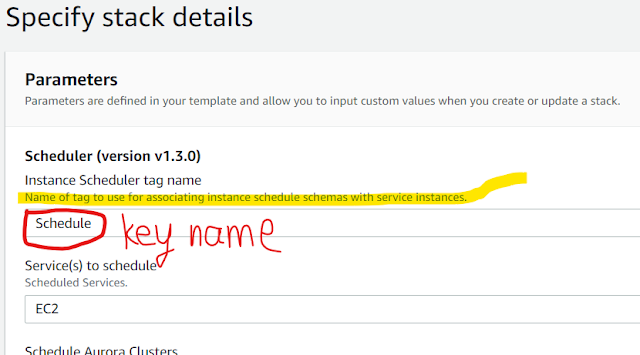
Example: How to Use AWS Instance Scheduler to Automatically Start and Stop EC2 instances

Image
Go to your Amazon DynamoDB console and click Tables. There will be 2 tables, <stack-name>-ConfigTable and <stack-name>-StateTable. We will make some changes only on ConfigTable. You can find a lot of sampe config inside. Or you can go from CloudFormation Stacks Scheduler Created by you from  Resources, click ConfigTable. First, we need to create a Period that defines the time(s) the instance should run. Pick one of the sample Period and click Action > Duplicate. A popup will appear and you can change everything you need like (more options in the docs): begintime, instance start time (24-hour format), description, endtime, instance stop time (24-hour format), name, period name (need to be unique), weekdays, days of the week the instance will run. then click Save. Then create a Schedule, that specify when instances should run. Pick one of the sample schedule and click Action > Duplicate. A popup will appear and you can change everything you need like (more option...

Example: How to Use AWS Instance Scheduler to Automatically Start and Stop EC2 instances

Image
Go to your Amazon DynamoDB console and click Tables. There will be 2 tables, <stack-name>-ConfigTable and <stack-name>-StateTable. We will make some changes only on ConfigTable. You can find a lot of sampe config inside. Or you can go from CloudFormation Stacks Scheduler Created by you from  Resources, click ConfigTable. First, we need to create a Period that defines the time(s) the instance should run. Pick one of the sample Period and click Action > Duplicate. A popup will appear and you can change everything you need like (more options in the docs): begintime, instance start time (24-hour format), description, endtime, instance stop time (24-hour format), name, period name (need to be unique), weekdays, days of the week the instance will run. then click Save. Then create a Schedule, that specify when instances should run. Pick one of the sample schedule and click Action > Duplicate. A popup will appear and you can change everything you need like (more option...

Run AWS SAM CLI from Docker

AWS-SAM-CLI-on-docker

AWS CLI Configuration Variables

Configuration values for the AWS CLI can come from several sources:        o As a command line option        o As an environment variable        o As a value in the AWS CLI config file        o As a value in the AWS Shared Credential file        Some  options  are  only available  in the AWS CLI config.  This topic        guide covers all the configuration variables available in the AWS CLI.        Note that if you are just looking to get the minimum required  configu-        ration  to  run the AWS CLI, we recommend running aws configure, which        will prompt you for the necessary configuration values. CONFIG FILE FORMAT        The AWS CLI config file, which defaults to ~/.aws/config has the following format:   [default]   aws_acce...

Run AWS CLI from Docker

$ alias aws='docker run --rm -tiv $HOME/.aws:/root/.aws -v $(pwd):/aws i88ca/aws-cli aws' $ aws --version aws-cli/2.0.1 Python/3.7.3 Linux/4.14.154-128.181.amzn2.x86_64 botocore/2.0.0dev5 https://github.com/i88ca/aws-cli

Reads from Amazon DocumentDB replicas are eventually consistent.

 Reads from Amazon DocumentDB replicas return the data in the same order as it was written on the primary, and there is often less than a 50 ms replication lag. You can monitor the replica lag for your cluster using the Amazon CloudWatch metrics DBInstanceReplicaLag and DBClusterReplicaLagMaximum. 

Finds AWS database instance name and class

The following command finds AWS database instance name and class for up to 100 instances. # aws docdb describe-db-instances     --query 'DBInstances[*].[DBInstanceIdentifier,DBInstanceClass]' | less

Amazon DocumentDB storage automatically scales with the data in your cluster volume.

As your data grows, your cluster volume storage grows in 10 GiB increments, up to 64 TiB. The size of your cluster volume is checked on an hourly basis to determine your storage costs.

The primary way to control your incoming mail on AWS SES is to specify how mail is handled based on its recipient.

For example, if you own example.com, you can specify that mail for user@example.com should bounce, and that all other mail for example.com and its subdomains should be delivered. The list of recipients you provide is called the condition.

How to change unencrypted EC2 root volume encrypted?

First get an encrypted copy of the un-encrypted root volume: Step 1: stop instance (select instance > actions > instance state> stop Step 2: Create a snapshot of your existing root volume: https://docs.aws.amazon.com/AWSEC2/latest/UserGuide/ebs-creating-snapshot.html or go to the volume page > choose the root volume>actions > create snapshot Step 3: Once the snapshot has been created copy the snapshot (snapshot> actions> copy) and enable encryption in the process (check encrypt this snapshot) Step 4: Once new copy of snapshot of root volume has been created with encryption create a new volume from the new snapshot (which will in turn be encrypted) https://docs.aws.amazon.com/AWSEC2/latest/UserGuide/ebs-restoring-volume.html Step 5: Detach old Root volume Step 6: Attach new encrypted root volume created from the encrypted snapshot copy Step 7: start the instance back If your instance is for example a spot instance and therefore you can not stop it ( you can...

Best practices for using AWS Spot Instances:

Use the default maximum price, which is the On-Demand price. Ensure that your instance is ready to go as soon as the request is fulfilled by using an Amazon Machine Image (AMI) that contains the required software configuration. You can also use user data to run commands at start-up. Store important data regularly in a place that won't be affected when the Spot Instance terminates. For example, you can use Amazon S3, Amazon EBS, or DynamoDB. Divide the work into small tasks (using a Grid, Hadoop, or queue-based architecture) or use checkpoints so that you can save your work frequently. Use Spot Instance interruption notices to monitor the status of your Spot Instances. It is possible that your Spot Instance will be terminated before the warning can be made available. Test your application to ensure that it handles an unexpected instance termination gracefully, even if you are testing for interruption notices. You can do so by running the application using an On-Demand Instance and t...

How to install the custom CloudWatch script and log the disk utilization metric to Cloudwatch

How to install the custom CloudWatch script and log the disk utilization metric to Cloudwatch By default, CloudWatch does not log disk space utilization metric. However, there is a custom CloudWatch script that can be used to push the disk space utilization metric to CloudWatch which can then be used to create an SNS notification which would send you an alarm. https://docs.aws.amazon.com/AWSEC2/latest/UserGuide/mon-scripts.html. You can setup a threshold on the disk space utilization metric (in this case, you ca set the threshold to >=88% so that it can notify you before the disk becomes full) in Cloudwatch alarms which can trigger a notification to an SNS topic that you specify.

AWS EC2 default user name for the AMI that you used to launch your instance

For Amazon Linux 2 or the Amazon Linux AMI, the user name is ec2-user. For a Centos AMI, the user name is centos. For a Debian AMI, the user name is admin or root. For a Fedora AMI, the user name is ec2-user or fedora. For a RHEL AMI, the user name is ec2-user or root. For a SUSE AMI, the user name is ec2-user or root. For an Ubuntu AMI, the user name is ubuntu. Otherwise, if ec2-user and root don't work, check with the AMI provider.

How to fix AWS cloudfront the distribution supports only cachable requests

Cachable requests means GET, HEAD in this context. You need to configure cloudfront to allow "upload requests" like POST, PUT, etc.                            

How to install ansible on AWS EC2

ansible is available in Amazon Linux Extra topic "ansible2" To use, run # sudo amazon-linux-extras install ansible2 Learn more at https://aws.amazon.com/amazon-linux-2/faqs/#Amazon_Linux_Extras

Jenkins on AWS

Jenkins on AWS (whitepaper): https://d0.awsstatic.com/whitepapers/DevOps/Jenkins_on_AWS.pdf • DevOps and AWS: https://aws.amazon.com/devops/ 1 https://docs.aws.amazon.com/gettingstarted/latest/wah-linux/gettingstarted-prereq.html 2 https://console.aws.amazon.com/ec2/ 3 http://checkip.amazonaws.com 4 http://docs.aws.amazon.com/AWSEC2/latest/UserGuide/using-networksecurity.html 5 https://docs.aws.amazon.com/gettingstarted/latest/wah-linux/gettingstarted-prereq.html#create-a-key-pair